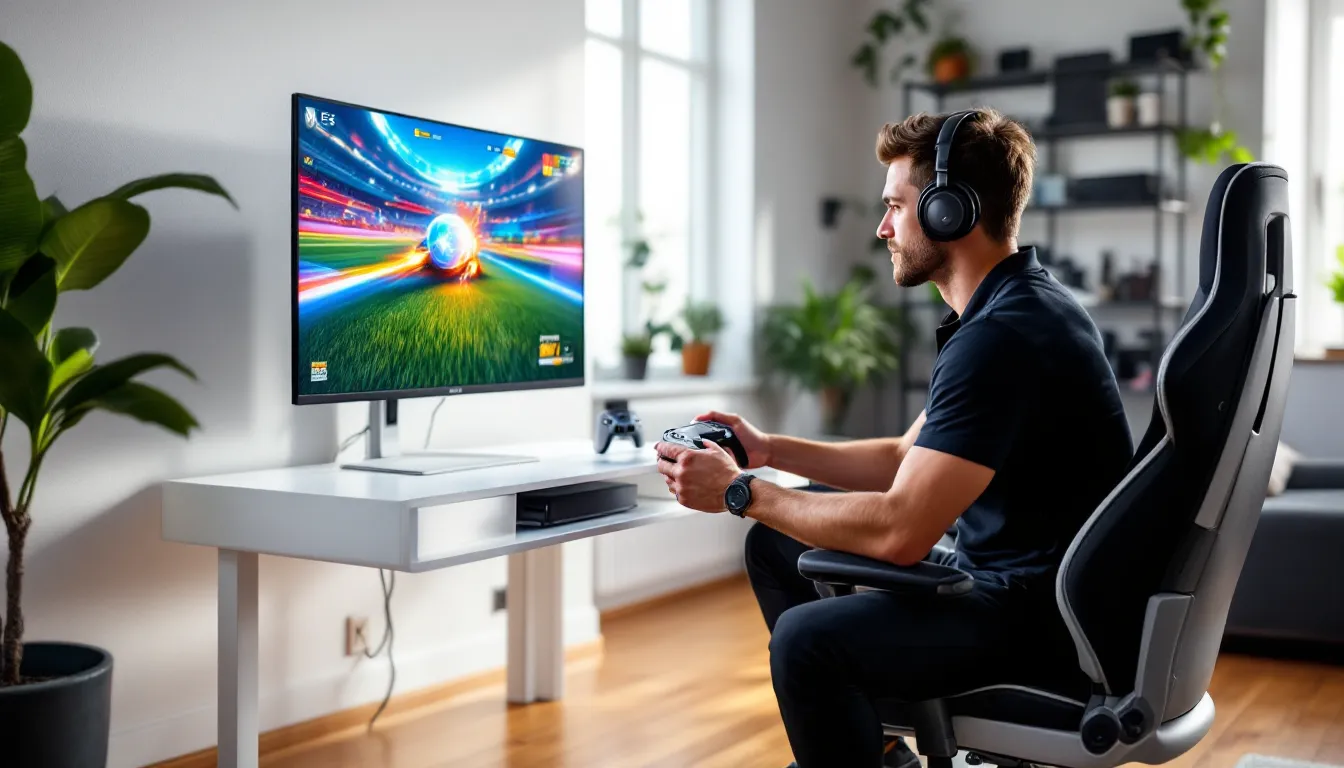
If you’re wondering whether there’s a PS5 version of Rocket League, the answer is yes, and it’s a significant upgrade. Psyonix released a dedicated next-gen version back in 2021, and by 2026, it’s still one of the smoothest ways to experience the car-soccer hybrid that’s become a competitive gaming staple. The PS5 version isn’t just a compatibility patch: it’s a ground-up enhancement that takes advantage of the console’s hardware to deliver 120 FPS gameplay, faster load times, and DualSense-specific features that subtly improve feedback during high-stakes matches.
Whether you’re a Diamond player grinding ranked or a newcomer trying to nail your first aerial, the PS5 version offers tangible advantages. This guide covers everything from installation and settings optimization to platform comparisons and troubleshooting. By the end, you’ll know exactly how to squeeze every drop of performance out of Rocket League on Sony’s latest console.
Key Takeaways
- Rocket League PS5 delivers 120 FPS performance with drastically reduced input lag, making it the definitive console version for competitive ranked play.
- The PS5 version features native 4K resolution, faster SSD-powered load times (8-12 seconds to launch), and DualSense haptic feedback that enhance both visual clarity and responsiveness.
- Optimizing video settings by disabling V-Sync, motion blur, and depth of field, plus adjusting controller sensitivity and dead zones, gives competitive players a significant edge in matches.
- Cross-platform play lets you party with friends on PC, Xbox, and Switch while maintaining synchronized ranks and inventory across all platforms.
- Rocket League PS5 eliminates technical disadvantages from PS4, halving input lag and doubling frame rate—a substantial upgrade worth considering for serious competitive players.
What Makes Rocket League on PS5 Stand Out?
Does Rocket League have a PS5 version that actually justifies the hardware? Absolutely. The next-gen update isn’t cosmetic, it’s a functional overhaul that impacts how the game feels, looks, and responds. Here’s what separates the PS5 build from older consoles and even some PC setups.
Enhanced Graphics and 4K Resolution
The PS5 version supports native 4K resolution when playing in quality mode. Textures are sharper, car details pop, and stadium environments look cleaner than they ever did on PS4. The lighting engine got a subtle rework, too, ball reflections on car bodies and dynamic shadows during goal replays feel more polished.
But here’s the thing: most competitive players don’t prioritize visual fidelity. The real benefit of enhanced graphics on PS5 is clarity. Being able to distinguish ball spin, opponent positioning, and boost pad availability at a glance matters more in Diamond-plus lobbies than fancy lighting effects. The higher base resolution reduces blur during fast rotations, which is a legitimate edge in tight matches.
120 FPS Performance Mode
This is the crown jewel of the PS5 version. Performance mode locks Rocket League at 120 frames per second, doubling the 60 FPS cap from PS4. You’ll need a display that supports 120Hz refresh rates to take advantage of this, but if you have one, the difference is night and day.
Input lag drops significantly. Your flips, aerials, and wave dashes feel more responsive. The ball’s trajectory during fast passes becomes easier to read because frame pacing is smoother. If you’re coming from a PS4 Pro, expect a noticeable adjustment period, everything will feel slightly faster, and your muscle memory might need recalibration.
Many esports competitors and analysts have noted that 120 FPS is now the baseline for serious ranked play on console. It won’t magically boost you two ranks, but it removes a technical handicap that PS4 players still deal with.
DualSense Controller Integration
The DualSense’s haptic feedback adds subtle cues that aren’t game-changing but are nice quality-of-life touches. You’ll feel a slight rumble when you pick up boost pads, a sharper jolt on demolitions, and nuanced vibration during ball contact. It’s not revolutionary, most pros turn vibration off entirely, but casual and mid-rank players appreciate the tactile feedback.
Adaptive triggers are implemented but can be toggled off. When enabled, the R2 accelerator offers variable resistance depending on your boost level and speed. Some players find this immersive: others find it distracting. The smart move is to test both settings in free play before committing to ranked matches.
One underrated feature: the DualSense’s improved battery life compared to DualShock 4. Longer sessions without needing a charge mid-tournament run is a small but real benefit.
How to Download and Install Rocket League on PS5
Getting the Rocket League PS5 version installed is straightforward, but there are a couple of details worth knowing, especially if you’re migrating from PS4 or dealing with Epic Games account linking.
Free-to-Play Access via PlayStation Store
Rocket League went free-to-play in September 2020, and that model carries over to PS5. Open the PlayStation Store on your console, search for “Rocket League,” and download the game. The PS5 version is clearly labeled, look for the “PS5” tag on the icon to confirm you’re not accidentally grabbing the PS4 build.
The download size is around 22 GB as of early 2026, which is manageable even on the base 667 GB usable storage. If you’ve got a digital-only PS5, make sure you’ve freed up space beforehand. The SSD speeds mean installation takes roughly 5-10 minutes once the download finishes.
If you already have the PS4 version installed on your PS5 (via backward compatibility), the PS5 version is treated as a separate app. You can delete the PS4 version after confirming your account carries over.
Transferring Progress from PS4 to PS5
All progression, items, and cosmetics transfer automatically if your PlayStation account is linked to an Epic Games account. This includes:
- Competitive rank and MMR
- Tournament rewards and titles
- Battle Pass progress and unlocks
- Inventory (cars, decals, wheels, boost trails)
- Credits and Esports Tokens
The first time you launch the PS5 version, the game will prompt you to log into Epic Games. Use the same account you used on PS4, and everything syncs within seconds. If you’ve never linked your PSN to Epic, you’ll be walked through account creation during the first boot.
Important caveat: If you played Rocket League on PS4 before the Epic Games acquisition and never linked accounts, you risk losing progress. The game gives you a one-time merge opportunity, but it requires following prompts carefully. Don’t skip the linking step.
Optimizing Your PS5 Settings for Competitive Play
Out-of-the-box settings are decent, but competitive players need to fine-tune video, controller, and audio options to maximize responsiveness and consistency. Here’s how to configure Rocket League for ranked grinding on PS5.
Best Video Settings for Maximum FPS
First things first: switch to Performance Mode in the PS5 system settings. Navigate to Settings > Screen and Video > Video Output, and ensure “Performance Mode or Resolution Mode” is set to Performance Mode. This prioritizes frame rate over visual fidelity across all games that support it.
Inside Rocket League’s video settings:
- Quality Preset: Performance
- Max FPS: 120 (requires 120Hz display)
- Vertical Sync: Off (reduces input lag)
- Motion Blur: Off (critical for tracking the ball)
- Depth of Field: Off (removes background blur)
- Lens Flare: Off (eliminates visual clutter)
- Light Shafts: Off (cosmetic, impacts clarity)
- Bloom: Off (reduces washed-out lighting)
- Ambient Occlusion: Off (minor performance gain)
Leaving V-Sync off can introduce minor screen tearing, but the reduction in input lag is worth it for competitive play. If tearing bothers you during casual matches, toggle it back on, but serious ranked sessions demand every millisecond of response time.
Controller Sensitivity and Dead Zone Adjustments
Controller settings are deeply personal, but there are baseline recommendations that most high-level players cluster around.
Steering Sensitivity: 1.30–1.50
Higher sensitivity allows faster aerial adjustments and quicker recoveries. If you’re new, start at 1.30 and inch upward as your car control improves.
Aerial Sensitivity: 1.30–1.50
Match this to your steering sensitivity for consistency. Some players prefer slightly higher aerial sensitivity (1.50+) for faster air rolls, but it takes practice to avoid over-corrections.
Controller Dead Zone: 0.05–0.10
This is the threshold before stick input registers. Lower dead zones (0.05) offer more precise micro-adjustments but can cause stick drift if your controller has wear. Start at 0.10 and lower it only if you’re confident your DualSense is in good shape.
Dodge Dead Zone: 0.50–0.70
This controls how far you need to push the stick to trigger a dodge. Most pros use 0.50 for faster flicks, but newer players might prefer 0.60-0.70 to avoid accidental dodges during aerials.
Vibration: Off (for competitive), On (for casual)
Haptic feedback feels great but can interfere with fine motor control during intense moments. Top-level players universally disable it.
Audio Settings for Tactical Advantage
Sound cues matter more than most players realize. Boost pickups, supersonic trails, and opponent demos all have distinct audio signatures that inform positioning.
- Master Volume: 60-80% (loud enough to hear cues without distraction)
- Music Volume: 0-10% (turn this way down or off during ranked)
- SFX Volume: 100% (maximize gameplay sounds)
- Voicechat Volume: Adjust to preference (or mute if solo queuing)
If you’re using a headset, enable 3D Audio in the PS5 system settings. This gives subtle spatial awareness, hearing a demo coming from your left or right can save positioning blunders. According to gaming audio breakdowns from industry sources, 3D audio support in competitive titles has become increasingly important for player awareness since the PS5 launch.
PS5 Exclusive Features and Quality-of-Life Improvements
Beyond raw performance, the PS5 version includes platform-specific features that streamline the experience. They’re not flashy, but they add up over time.
Fast Loading Times with SSD Technology
The PS5’s custom SSD cuts load times dramatically. Launching Rocket League from the home screen to the main menu takes about 8-12 seconds. Joining a ranked match from the playlist menu averages another 5-8 seconds. Compare that to PS4’s 30-45 second load screens, and you’re saving minutes per session.
This matters most during tournament runs. Between matches, you’ve got limited time to adjust settings, grab water, or mentally reset. Faster loads mean less dead time and more actual gameplay. If you’re grinding ranked for hours, those seconds compound into a noticeably smoother experience.
Restarting training packs is near-instant, too. You can iterate on mechanics without the frustration of waiting for reloads. For players working on ceiling shots, flip resets, or air dribbles, this is a legitimate quality-of-life win.
Activity Cards and Game Help Integration
PS5’s Activity Cards let you jump directly into specific modes from the home screen without booting the game first. You can launch straight into Casual 3v3, Competitive 2v2, or even Custom Training. It’s a minor convenience, but it’s there if you use it.
Game Help integration is less useful for Rocket League veterans but helpful for newer players. The PS5 can surface tutorial videos and tips for basic mechanics like aerials, dribbling, and rotation without leaving the console UI. If you’re coaching a friend who just picked up the game, this feature saves you from explaining the same fundamentals repeatedly.
Cross-Platform Play and Progression
Rocket League’s cross-platform ecosystem is one of its strongest features, and the PS5 version plugs into it seamlessly. Whether your squad is on PC, Xbox, or Switch, you can party up without friction.
Playing with Friends Across All Platforms
Cross-platform matchmaking is enabled by default. You’ll face players from PC, Xbox Series X
|
S, Xbox One, PS4, Switch, and even Epic Games Store users in the same lobbies. Ranked MMR pools are shared across all platforms, so your Champ 2 rank on PS5 is the same Champ 2 you’d face on PC.
To party with friends on other platforms:
- Open the friends list in-game (not the PS5 friends menu)
- Click “Add Friend”
- Enter their Epic Games Display Name (case-sensitive)
- Send the request and wait for them to accept
Once added, they’ll appear in your Epic friends list regardless of their platform. You can invite them to parties, trade (with restrictions), and play any mode together except Competitive Solo.
Platform parity note: PC players with high-end setups can push beyond 120 FPS, but the skill gap at that point is negligible for most ranks. PS5 players at 120 FPS are on nearly equal footing with mid-tier PC setups. The mechanical ceiling is high enough that hardware differences rarely determine match outcomes below GC2.
Managing Your Epic Games Account
Your Epic Games account is the hub for all progression, inventory, and cross-platform features. To check or update your linked accounts:
- Log into Epic Games account management
- Navigate to Connections
- Confirm your PSN, Xbox, Steam, or Switch accounts are linked
If you play on multiple platforms (e.g., PS5 at home, Switch on the go), your progress syncs automatically as long as you use the same Epic account. Ranks, items, and challenges carry over.
Trading restrictions: Items purchased on PS5 using PlayStation wallet funds are locked to PlayStation platforms. Items from crates, drops, or cross-platform purchases can be traded freely. It’s a platform policy quirk, not a Rocket League limitation.
Performance Comparison: PS5 vs. PS4 and Other Platforms
How does the Rocket League PS5 version stack up against last-gen consoles and PC? Here’s the breakdown for players considering an upgrade or comparing across platforms.
Frame Rate and Input Lag Differences
| Platform | Max FPS | Typical Input Lag | Notes |
|---|---|---|---|
| PS5 | 120 | ~30-35ms | Requires 120Hz display |
| PS4 Pro | 60 | ~50-55ms | Occasional frame drops |
| PS4 | 60 | ~55-60ms | Stable but capped |
| Xbox Series X | 120 | ~30-35ms | Parity with PS5 |
| PC (high-end) | 240+ | ~20-30ms | Depends on setup |
| Switch | 60 | ~65-75ms | Handheld mode drops to 30 |
Key takeaway: PS5 matches Xbox Series X and competes with mid-tier PC builds. If you’re on PS4 or PS4 Pro, the jump to PS5 is substantial, halved input lag and doubled frame rate change how the game responds.
Input lag matters most during aerials, 50/50s, and wall reads. That extra 20-25ms delay on PS4 won’t stop you from hitting Champion, but it’s a technical disadvantage that PS5 eliminates. Reviews from PlayStation-focused gaming outlets have consistently highlighted the performance jump as one of the best reasons to upgrade for competitive players.
Visual Quality and Competitive Edge
Visual fidelity differences between PS5 and PS4 are noticeable but not game-changing for ranked performance. The PS5 version’s 4K resolution and improved texture streaming make the game look cleaner, but competitively, the advantage is in frame rate and input lag.
PS5 vs. PC: High-end PCs can push 240 FPS or higher, but diminishing returns kick in hard past 144 FPS for most players. The difference between 120 and 240 FPS is far less impactful than the jump from 60 to 120. Unless you’re SSL-ranked and fighting for every millisecond, PS5’s 120 FPS is more than sufficient.
PS5 vs. Xbox Series X: Functionally identical. Both hit 120 FPS, both have similar input lag, both support 4K. Platform choice comes down to ecosystem preference, not performance.
PS5 vs. Switch: No contest. The Switch version is fine for casual portable play, but the 60 FPS cap (30 in handheld), lower resolution, and higher input lag make it a poor choice for serious ranked grinding.
Essential Tips for Improving Your Gameplay on PS5
Hardware upgrades don’t replace skill, but they do remove bottlenecks. Here’s how to leverage the PS5’s strengths to accelerate improvement.
Mastering Aerial Mechanics with Enhanced Performance
The 120 FPS frame rate gives you more visual data per second, which directly improves aerial consistency. You’ll see the ball’s rotation and trajectory with greater clarity, making reads easier during fast passes or redirects.
Training focus areas for PS5 players:
-
Fast Aerials: With lower input lag, your jump-boost-tilt sequences register faster. Practice fast aerials in free play until they’re muscle memory. The tighter timing window is easier to hit on PS5 than PS4.
-
Air Roll Adjustments: The smoother frame pacing makes mid-air corrections more intuitive. Bind air roll left or right to L1 or R1 and practice tornado spins. The visual feedback at 120 FPS helps you orient faster.
-
Flip Resets: This advanced mechanic relies on precise car positioning. The PS5’s performance boost won’t teach you flip resets, but it will make the timing more forgiving once you understand the concept.
Pro tip: Record your gameplay using the PS5’s built-in capture feature (Create button). Review your replays at half speed to catch positioning mistakes and failed reads. The improved visual quality makes replay analysis more effective.
Training Packs and Custom Drills
Training packs are the fastest way to build mechanical consistency. Here are essential packs worth grinding on PS5:
- Poquito’s Ground Shots (Code: 5A65-632D-0C34-7BD4): Fundamental shooting drills. Nail these before moving to aerials.
- Wall-to-Air Dribble (Code: 9D87-258B-55B4-E4EF): Builds car control and touch consistency.
- Redirects by IP Joker (Code: 8D93-C997-0AED-8416): Mid-level aerial redirection practice.
- Double Tap Shots (Code: 9E38-05C3-AC3B-F018): Advanced off-backboard finishing.
Set a daily goal: 15 minutes of mechanics training before queuing ranked. The PS5’s instant-restart feature means you can rep shots faster than on PS4, compressing effective practice time.
Custom drills: Use Bakkes Mod alternatives like workshop maps (PC-only, unfortunately) or create custom matches with mutators. Practice unlimited boost, slow-mo, or low gravity to isolate specific skills. The PS5 handles these scenarios without frame drops, unlike PS4.
Common PS5 Issues and Troubleshooting Solutions
Even though the Rocket League PS5 version being well-optimized, occasional technical hiccups crop up. Here’s how to fix the most common problems.
Fixing Connection and Server Problems
Issue: “Unable to contact Rocket League servers” error on boot.
Solutions:
- Check Psyonix server status: Rocket League’s official Twitter or third-party status trackers. If servers are down globally, you’ll have to wait.
- Restart your router and PS5: Basic but effective. Power cycle both devices, wait 30 seconds, and reconnect.
- Test your NAT type: Go to PS5 Settings > Network > Connection Status > Test Internet Connection. NAT Type 2 is ideal. Type 3 can cause matchmaking issues, forward ports 7000-9000 on your router if needed.
- Switch DNS servers: Change to Google DNS (8.8.8.8 / 8.8.4.4) or Cloudflare DNS (1.1.1.1) in PS5 network settings. This occasionally resolves connectivity drops.
Issue: High ping or rubber-banding during matches.
Solutions:
- Switch to wired connection: Ethernet dramatically reduces latency and packet loss compared to Wi-Fi. If you can’t run a cable, consider powerline adapters.
- Adjust matchmaking region: In Rocket League’s settings, limit your search to your home region. Including distant servers tanks your ping.
- Close bandwidth-heavy apps: Other devices streaming 4K video or downloading updates can choke your connection. Prioritize Rocket League traffic in your router’s QoS settings if available.
Resolving Frame Rate Drops and Stuttering
Issue: Occasional stuttering or FPS drops during gameplay, especially in Rumble or Dropshot modes.
Solutions:
- Rebuild PS5 database: Boot into Safe Mode (hold power button until second beep), select “Rebuild Database.” This clears corrupted cache data and can smooth performance.
- Ensure adequate ventilation: Overheating can throttle the PS5’s GPU. Keep vents clear and consider a cooling stand if your console runs hot.
- Update to latest game version: Psyonix patches performance issues regularly. Check for updates manually via the game tile > Options > Check for Update.
- Reinstall Rocket League: If drops persist, delete and redownload the game. Corrupted install files can cause intermittent stuttering.
Issue: Input lag feels inconsistent or worse than expected.
Solutions:
- Enable Game Mode on your TV/monitor: Most displays have a low-latency mode that disables post-processing. This can cut 20-40ms of input lag.
- Disable V-Sync in-game: As mentioned earlier, V-Sync adds latency. Turn it off in video settings.
- Check controller connection: Use a USB cable for a wired connection. Bluetooth introduces 1-3ms of additional latency, which compounds with other sources.
- Test with a different controller: If lag persists, your DualSense might have hardware issues. Borrow a friend’s controller to isolate the problem.
Conclusion
The Rocket League PS5 version is the definitive console experience for the game in 2026. With 120 FPS performance, drastically reduced input lag, and SSD-powered load times, it removes technical barriers that held PS4 players back. Whether you’re climbing ranked, grinding training packs, or just messing around in casual, the hardware advantages are noticeable and appreciated.
Optimizing your settings takes maybe 15 minutes, but the payoff lasts every session. Disable motion blur, drop your dead zones, switch to performance mode, and you’re set. Cross-platform play ensures you’ll never lack opponents, and progression carries over if you decide to bounce between platforms.
If you’re still on PS4, the upgrade is worth it, not just for Rocket League, but the PS5 version alone justifies the jump for competitive players. If you’re already on PS5 and haven’t tweaked your settings yet, spend the time now. You’ll feel the difference in your first ranked match.