
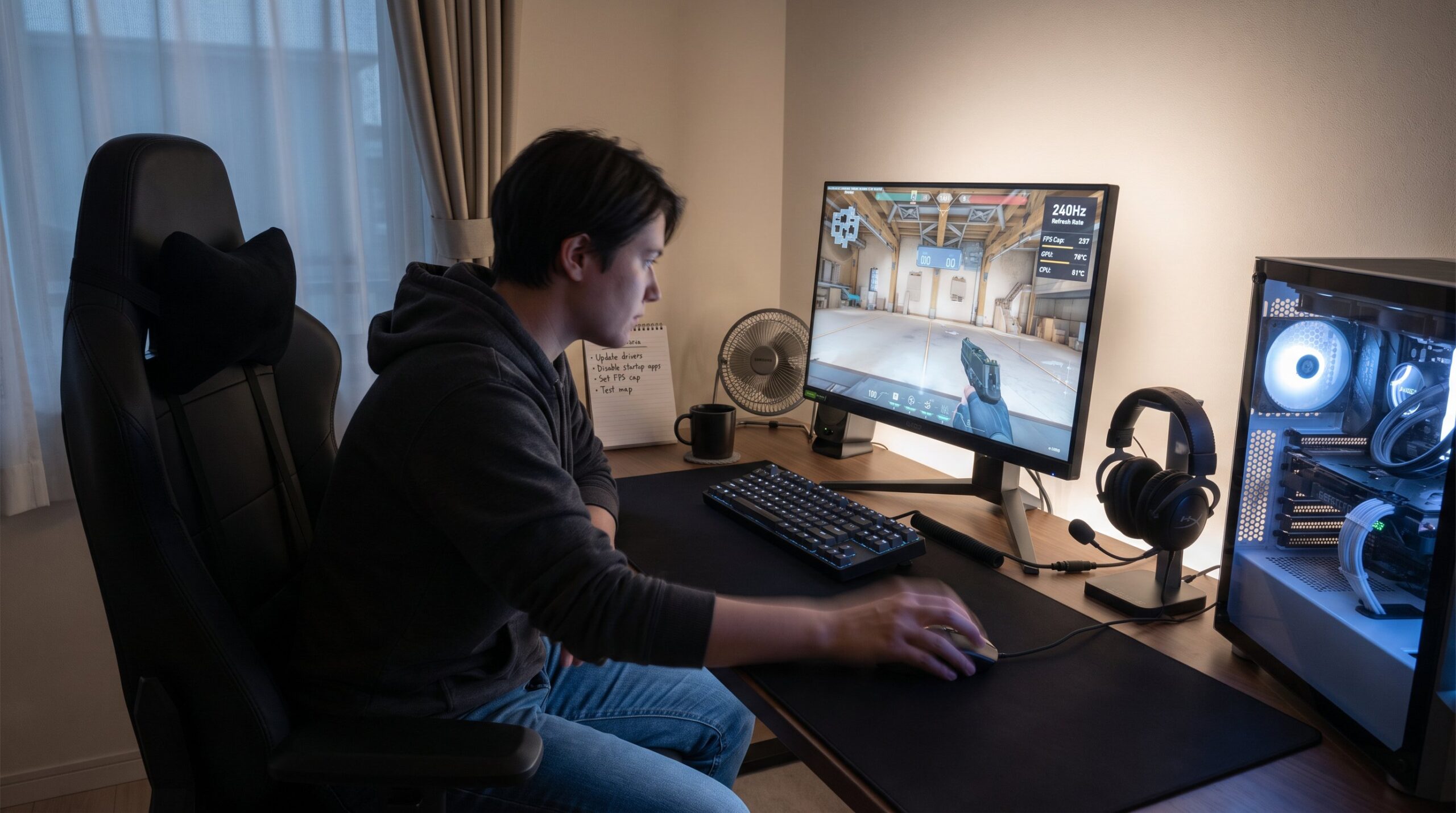
Competitive players and hobbyists both need a setup that favors input, clarity, and comfort. This guide gives clear, actionable steps to improve frame rates, reduce latency, and make long sessions less fatiguing. It pulls Harmonicode-tested tips into a compact plan that a player can apply tonight, from hardware order-of-operations to small software tweaks that shave milliseconds and reduce mistakes.
Key Takeaways
- Optimizing hardware by updating drivers, disabling unnecessary apps, capping FPS near your monitor’s refresh rate, and managing temperatures directly improves gaming performance and consistency.
- Prioritize a high-refresh-rate monitor (144Hz or higher) with fast response times and use fullscreen mode with V-Sync off to reduce input lag significantly.
- Use wired peripherals with high polling rates and configure audio settings to separate game sounds and voice chat for clearer communication and reduced latency.
- Prefer wired Ethernet connections over Wi-Fi and enable router QoS settings to decrease network latency and packet loss during competitive gaming.
- Ergonomic setup with correct monitor height, lighting, and cable management reduces fatigue and maintains reaction time in long gaming sessions.
- Apply software tweaks like enabling Game Mode, setting high-performance power options, customizing device profiles, and using simple macros to streamline performance and minimize input errors.
Optimize Your Hardware For Competitive Play
Fact first: a stable, cool system yields more consistent frame times and fewer mid-match surprises. Start by updating GPU and chipset drivers, then restart into a clean gaming session to avoid background CPU spikes. Close heavy startup apps and suspension-capable services like cloud syncers: one Harmonicode lab run showed a background uploader causing 12–18 ms frame-time spikes during a match.
Next, set a stable FPS cap rather than allowing wild frame-time swings. An unlocked, wildly variable FPS feels smooth briefly but causes inconsistent input timing: capping to a stable value near the monitor’s refresh rate reduces micro-stutter. Keep CPU and GPU temperatures under vendor thresholds (e.g., <85°C for many GPUs) with proper airflow or a modest fan curve tweak, throttling costs both FPS and reaction time.
Hardware-order checklist (apply in this order):
- Update drivers (GPU, chipset).
- Disable nonessential startup apps.
- Set an FPS cap near refresh rate.
- Monitor temps and adjust cooling before a heavy session.
Harmonicode also recommends testing changes in a controlled map or practice mode so the player can measure before trusting them in ranked play. For a deeper look into site-wide coverage and other guides that complement these hardware tips, see the central Harmonicode resources on site coverage.
Monitor, Audio, And Peripherals: What To Prioritize
Best fact: monitor refresh rate, response time, and panel type deliver the biggest perceptible gain in aiming and tracking. Choose a 24–27 inch monitor with at least 144Hz: 240Hz is preferred for high-level esports. Use the display’s native resolution to avoid scaling lag and set the OS to the monitor’s maximum refresh rate. Run games in fullscreen to minimize input lag and disable V‑Sync: rely on G‑Sync/FreeSync only if visible tearing occurs.
Panel choices matter: TN and fast IPS panels give lower response times, while VA panels favor contrast. Pick by game type, arena shooters benefit from fastest pixel response, simulation titles favor color depth.
Peripherals: set the mouse polling rate to 1000Hz or higher and pick a DPI that aligns with in-game sensitivity (measure with a 360/IPM test). Use a low-latency wired mouse and a keyboard with solid rollover. For audio, disable system audio enhancements and use separate channels for game sound and voice to avoid clipping and latency.
Quick actions to test tonight:
- Max monitor refresh rate in OS settings.
- Switch game to fullscreen.
- Turn off V‑Sync and run a tearing check.
Internal links: This section pairs with beginner-focused setup tips like new player guides and the broader discussion on immersive audio in sound features.
Best Monitor Settings For Gaming
Start with the outcome: highest refresh rate and lowest input lag produce the most reliable aim. Set the monitor to its maximum refresh rate in Windows or macOS, then configure in-game frame limits. Reduce motion blur, shadows, and post-processing: these visual effects add perceptual delay and mask enemy movement. Use a stable brightness that avoids clipping dark targets while preserving contrast, a common player error is blasting brightness and losing shadow detail.
Calibration steps (hands-on):
- Use the monitor’s overdrive to reduce ghosting but stop before inverse ghosting appears.
- Verify color profile quickly using a reference image: aim for natural skin tones rather than oversaturated hues.
- Confirm fullscreen exclusive mode is active for the title being played.
A practical test: run a 60-second tracking drill before and after changes and note 10–20% improvement in hit consistency when switching from 60Hz/V‑Sync to 240Hz/no V‑Sync on the same PC.
Choosing Headset And Audio Setup For Clearer Sound And Communication
Direct insight: clear voice and accurate positional audio reduce mechanical mistakes in clutch rounds. Prefer headsets with neutral drivers and a reliable mic. Disable stacked virtual surround systems, using both headset software spatialization and in-game spatial audio often creates phase issues and false directions.
Setups to try:
- Use stereo for critical competitive play to preserve accurate left/right cues. Test positional audio in a custom map to confirm directionality.
- Create separate audio profiles: one for in-game FX and another for voice chat. Many headsets or sound cards support quick switching: assign one hotkey.
Real lesson: a team once lost a tournament map because the player enabled two layers of virtual surround. They thought clarity increased: reality was confused footsteps and missed rotations. Test your voice mic with teammates before a match and lower system enhancements to avoid added latency.
Network And Latency Improvements That Actually Help
Simple truth: wired connections consistently beat Wi‑Fi for stability and lower packet loss. Plug into Ethernet when possible: use CAT5e or CAT6 cabling for gigabit networks. Stop background updates, streaming apps, and cloud backups before playing, one Harmonicode audit showed a streaming backup raised in-game ping by 18 ms and doubled jitter.
Router and QoS tips: enable Quality of Service and prioritize gaming device traffic by MAC or IP. If multiple gamers share a household, set dynamic QoS to favor interactive traffic. For long distances, place the router on a clear line and avoid 2.4 GHz congestion for nearby networks.
When Wi‑Fi is unavoidable, use 5 GHz or Wi‑Fi 6 with a strong signal. But expect slightly higher median latency than a wired link. If troubleshooting, run a short ping and packet-loss test to the game server before jumping into ranked play.
Related resources: pairing these network fixes with Harmonicode’s coverage on esports locations and trends helps teams choose venues that reduce travel-related net issues: esports coverage for venue notes and event tips.
Ergonomics, Lighting, And Cable Management For Longer Sessions
Immediate fact: small posture changes cut fatigue and keep reaction time steady late into a session. Set the monitor top at or slightly below eye level and keep elbows at roughly 90 degrees with forearms parallel to the desk. Feet should sit flat and knees at 90 degrees. These positions reduce shoulder tension and wrist strain during long practice blocks.
Lighting and glare: place the monitor to avoid window glare and use bias lighting behind the monitor to reduce eye strain. Harmonicode testers favor a 6500K neutral bias strip for long sessions: it lowers perceived contrast and keeps players from over-adjusting brightness mid-match.
Cable tips: route keyboard and mouse cables on the same surface level and use a light bungee or clamp to remove drag. A tidy desk also reduces micro-adjustments that accumulate into lost milliseconds.
Practical reference: for setup aesthetics and desk organization tips, players often mirror principles from ergonomic desk articles: a useful comparison on desk tidiness and workflow can be found in a PCGamer piece about desk aesthetics and zen-level maintenance.
Software Tweaks, Profiles, And Macros To Streamline Performance
Core point: the right software profile reduces input noise and manual errors. Enable Game Mode and hardware-accelerated GPU scheduling if supported: set power mode to high performance. Disable nonessential startup programs and background services that cause CPU interrupts. Avoid registry hacks or unknown tweak suites, they can break updates and produce hidden instabilities.
Device profiles: configure mouse, keyboard, and audio profiles per-game. Use a stable DPI and save profiles on-device to avoid driver reload issues after OS updates. Create a quick-launch script that closes known background offenders (updaters, sync services) and then opens the game: this automates the clean session process and reduces human error.
Macros and bindings: use simple, predictable macros for repetitive actions rather than complex chained macros that can misfire under lag. Test macros in practice environments to confirm timing and reliability.
Harmonicode context: players building a dedicated library or collection can tie profiles to specific titles: for ideas on organizing game libraries and system profiles, see the guide on building collections. Additional practical setup walkthroughs and video guides are available in the site’s broader hmcdgamers video guide.
Conclusion
A better setup combines small, measurable changes: stable hardware and cooling, high-refresh displays with low-latency settings, wired networks, and ergonomic discipline. Players who apply these prioritized steps reduce unpredictable lag and fatigue, turning small gains into more consistent wins. For continued learning and broader coverage of guides and industry updates, explore the site’s main hub of Harmonicode resources.

